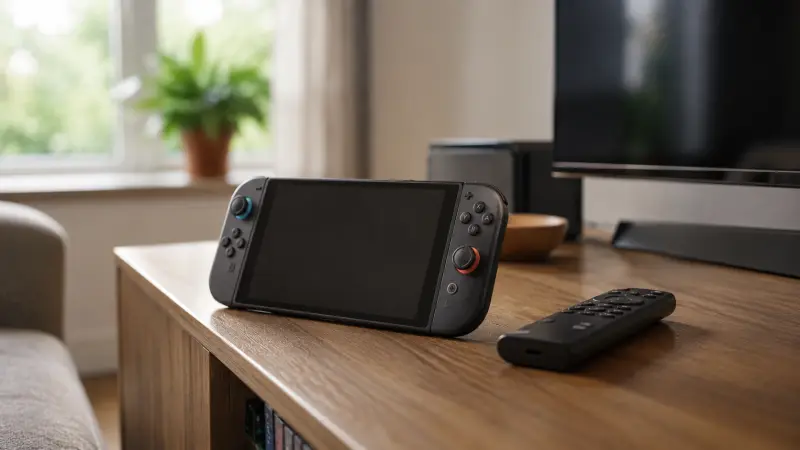
The Nintendo Switch 2 has more built into it than the menus suggest at first glance. Taking 20 minutes to go through System Settings properly will surface several features you would otherwise stumble across months later. Here are the ones worth finding early.
Protect your battery from day one
Nintendo has built in a setting that stops the console from charging past 90%, reducing the heat stress that comes from pushing a lithium-ion battery to full capacity. Go to System Settings > System > Stop Charging Around 90% and enable it. If your Switch 2 spends most of its time docked, this is especially worth turning on, since a constantly docked console is essentially kept at 100% charge indefinitely.
To check your battery level quickly without opening settings, press ZL and ZR simultaneously from the HOME menu. The charge percentage will flash briefly on screen. It is a small shortcut, but useful when you are about to leave the house and need a fast read.
Dial in your TV display settings
When docked, the Switch 2 supports output up to 4K, with HDR and frame rates up to 120fps depending on the game and your television. The default settings are not always optimal for your setup. Head to System Settings > TV Output to see exactly what your dock is outputting and to toggle HDR on or off for compatible software.
One thing worth knowing: 120Hz output only works at 1080p or 1440p, not 4K. If smooth motion matters more to you than maximum sharpness, set your output to 1440p and enable 120Hz if your TV supports it. The difference in sharpness between 1440p and 4K is rarely visible from a typical living room viewing distance.
Set up GameChat for online play with friends
GameChat is Nintendo’s built-in voice and video chat system. It lets you talk with up to 12 friends while playing, share your screen in real time, and use the console’s built-in microphone. It also includes accessibility options that are easy to miss: speech-to-text and text-to-speech are built in, along with larger display text and screen zoom. Worth checking if any players in your circle would benefit from them.
GameChat now requires a Nintendo Switch Online membership. Access was free during a launch period that ended in early 2026. An NSO subscription also unlocks online multiplayer for most titles and access to the classic games library, so it covers a range of features beyond GameChat alone.
Share your games with nearby players
GameShare lets you stream a compatible game from your Switch 2 to nearby Switch consoles over the same Wi-Fi network. The other players do not need to own the game themselves. As of mid-2026, 33 Switch 2 titles support local GameShare, including Donkey Kong Bonanza and Mario Tennis Fever. Twenty-three of those titles also support GameShare over GameChat, meaning you can share games with friends who are not physically in the room.
To start a session, launch the compatible game on your console and find the multiplayer or co-op option in the game’s main menu. Other players join by tapping the GameShare icon on their HOME screen. The host console does the heavy lifting, so a stable home Wi-Fi connection helps keep the experience smooth.
One more shortcut worth knowing
The C button on the right Joy-Con 2 opens GameChat directly when you are in a supported context, skipping the menu navigation. If your game image is not filling your TV screen correctly, the fix is under System Settings > TV Output > Adjust Screen Size. And if the battery percentage readout ever looks odd, Nintendo has acknowledged a known display quirk on Switch 2; the underlying charge figure is typically accurate even when the indicator behaves strangely.